
The Reports menu holds ready-made lists of your matters: what came in, what is being worked on, what has been billed, what is overdue and what is still unpaid. Each report is a table you can filter, search, export to Excel or print.
Run a report
- Open Reports in the menu on the left and click the report you want. The page shows a one-line description of the report under its name.
- Set the filters under Search Criteria. Leave a list on --All-- to include everything.
- Click Run Report.
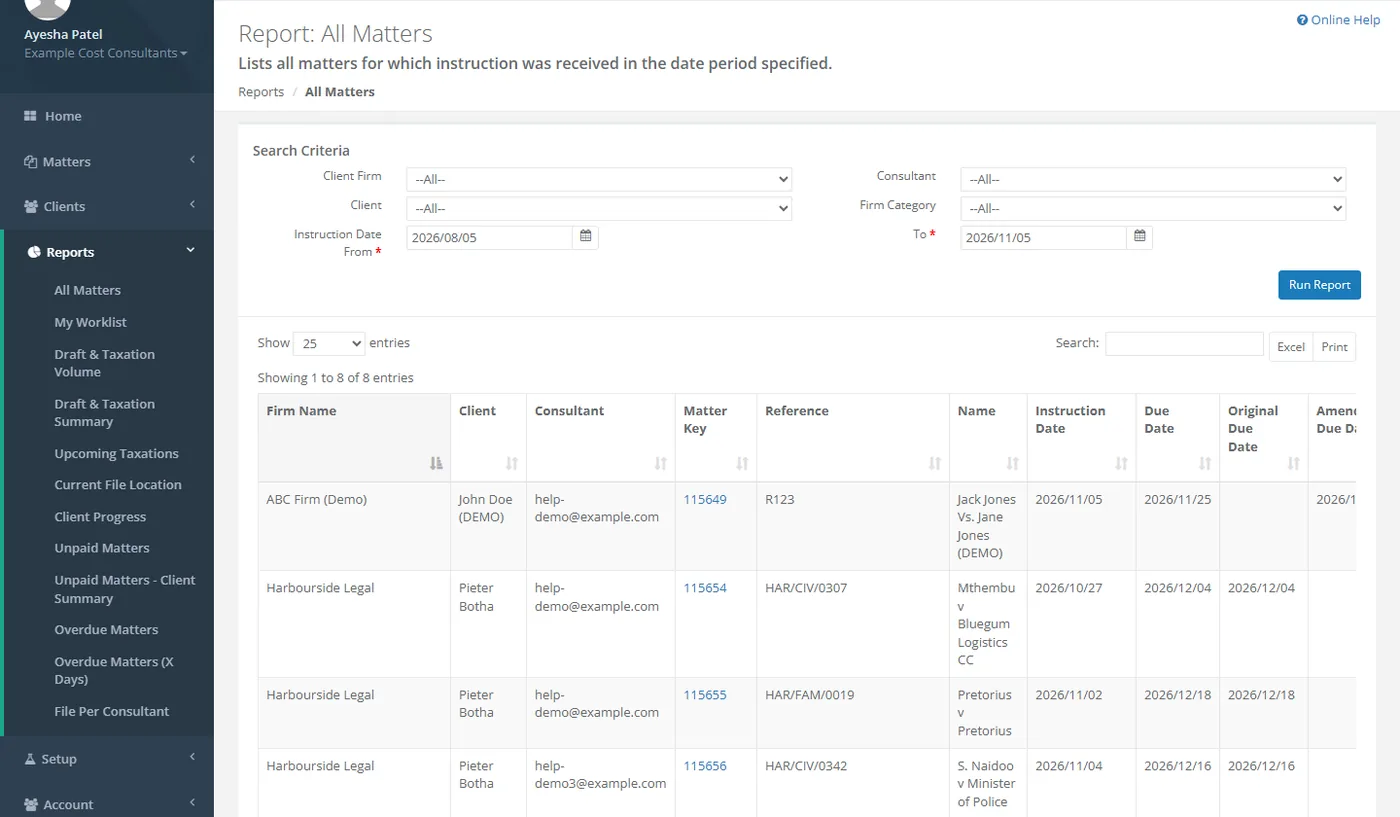
Filters
Not every report has every filter. The full set is:
- Client Firm - only matters of this instructing firm.
- Client - only matters of this client attorney. The list fills once you choose a firm.
- Consultant - only matters of this staff member.
- Firm Category - only matters of firms in this category.
- Instruction Date From and To - the date range. Both are required where they appear, and they start at three months ago and today.
- Location - on Current File Location only.
- Days Overdue - on Overdue Matters (X Days) only: 10, 30, 45, 60, 90 or 120 days.
Work with the results
- Choose how many rows to Show per page, and move between pages at the bottom.
- Type in Search to narrow the rows to those containing your text in any column.
- Click a column heading to sort by it.
- Click a number in the Matter Key column to open that matter.
- Click Excel to download the results as a spreadsheet, or Print to open a printable version of the table. Both use the rows the search box leaves on screen.
The reports
All Matters
Every matter whose instruction date falls in the date range, with its firm, client, consultant, reference, name, all its due and completion dates, the drafting and taxation debit amounts and dates, and its taxation notice and status details.
My Worklist
The matters currently being worked on, with the same details as All Matters plus the latest comment and file location. It has no date range.
Draft & Taxation Volume
The fees you generated: every matter with a drafting or taxation debit date in the date range, with the debit amounts excluding and including VAT and a total row. The date range here filters on the debit dates, even though the fields are labelled Instruction Date From and To.
Draft & Taxation Summary
The same figures as Draft & Taxation Volume, totalled per consultant. It has only the Consultant, Firm Category and date filters, and the dates again filter on the debit dates.
Upcoming Taxations
Matters that have a taxation appointment in the future. It has no date range.
Current File Location
Where each matter's file is now, with the location description and comment. Use Location to list the files at one place.
Client Progress
All active matters that are not yet completed, with their dates, taxation status, file location and comment. It has no date range. To give one firm its own progress report, see Firm statements and progress reports.
Unpaid Matters
Every invoice that still has an outstanding balance, with its matter, invoice number and description, the allocated amount, VAT, total and outstanding amount, and whether it was printed. It has no date range.
Unpaid Matters - Client Summary
The unpaid invoices totalled per firm, client and consultant, with a total row at the bottom.
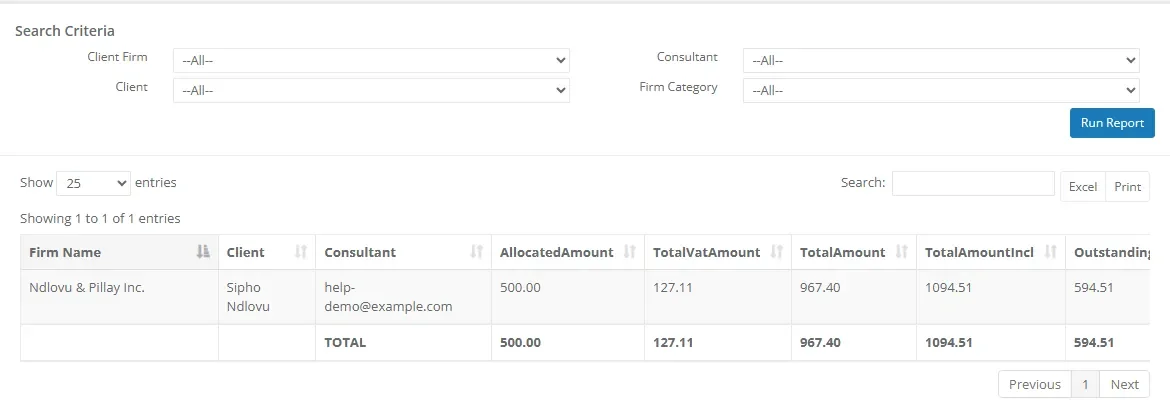
Overdue Matters
Matters that are not completed, whose instruction date falls in the date range and whose due date has passed.
Overdue Matters (X Days)
Matters that are not completed, whose instruction date falls in the date range and where the number of Days Overdue you choose has passed since the instruction date.
File Per Consultant
How many uncompleted matters each consultant has. The date fields appear on this report but do not change the result.
Invoices and receipts are covered in Invoices and receipts. The unpaid reports only change when receipts are recorded against invoices there.