
Each instructing firm has three views that bring together its matters: a statement of what the firm owes, a list of all its invoices and receipts, and a progress report on its open matters. Use them when a firm asks where its matters stand or what is outstanding.
Open a firm
- Go to Clients > Firms.
- Click the firm in the list. The Edit Firm page opens.
- Use the buttons at the top right: View Statement, View Invoices & receipts or View Progress Report.

For adding and changing firms and their client attorneys, see Set up and manage clients.
View statement
The Firm Statement is a statement of account you can send to the firm. It lists every invoice across the firm's matters that still has an outstanding balance, with the invoice number, the matter reference and name, and the amount owed.
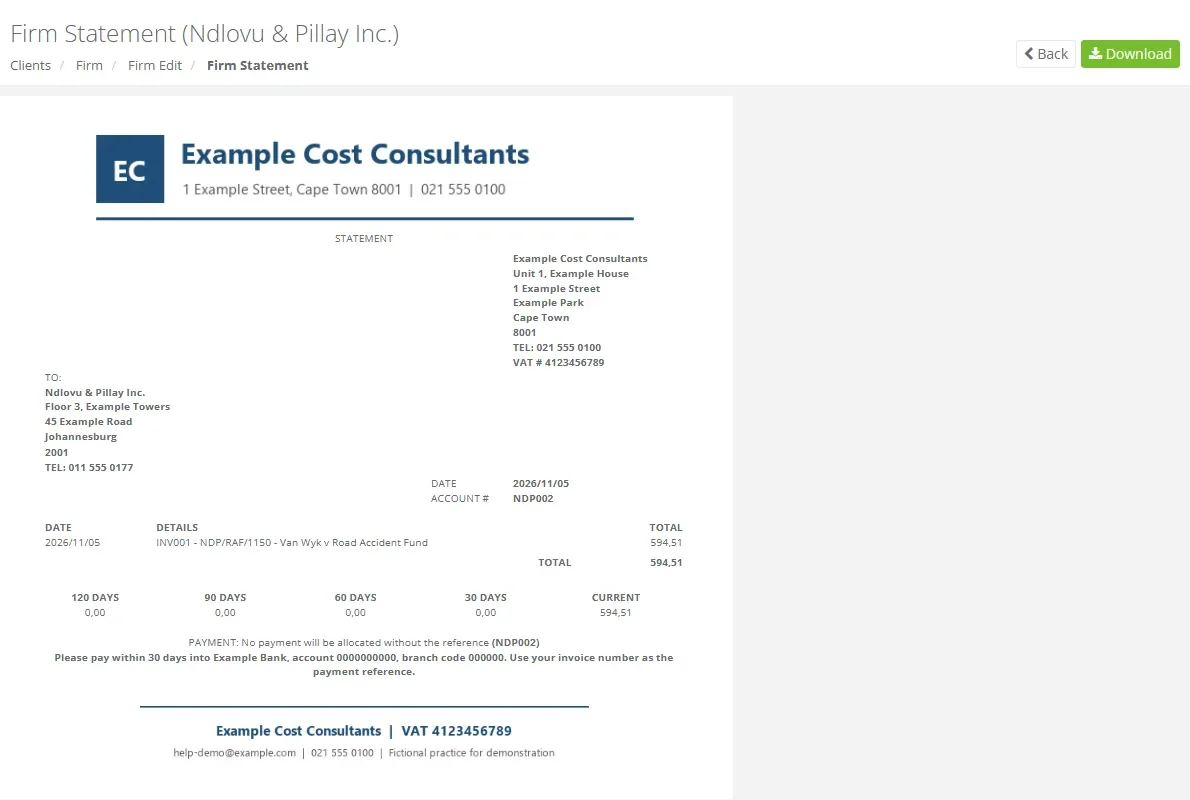
The statement shows:
- Your company's details and the firm's address.
- Today's DATE and the firm's ACCOUNT #, which is the account reference on the firm's setup.
- One line per unpaid invoice and the TOTAL owed.
- The total split by age: 120 DAYS, 90 DAYS, 60 DAYS, 30 DAYS and CURRENT.
- A payment line asking the firm to use its account number as the reference, followed by your company's payment instructions.
Click Download to save the statement as a PDF, or Back to return to the firm.
Give every firm an account reference on its setup. Without one, the ACCOUNT # and the payment reference on the statement are blank.
View invoices and receipts
Firm Invoices & Receipts lists every invoice and receipt on all the firm's matters, paid or not. Use it to answer a firm's query about a payment or to check what has been billed.
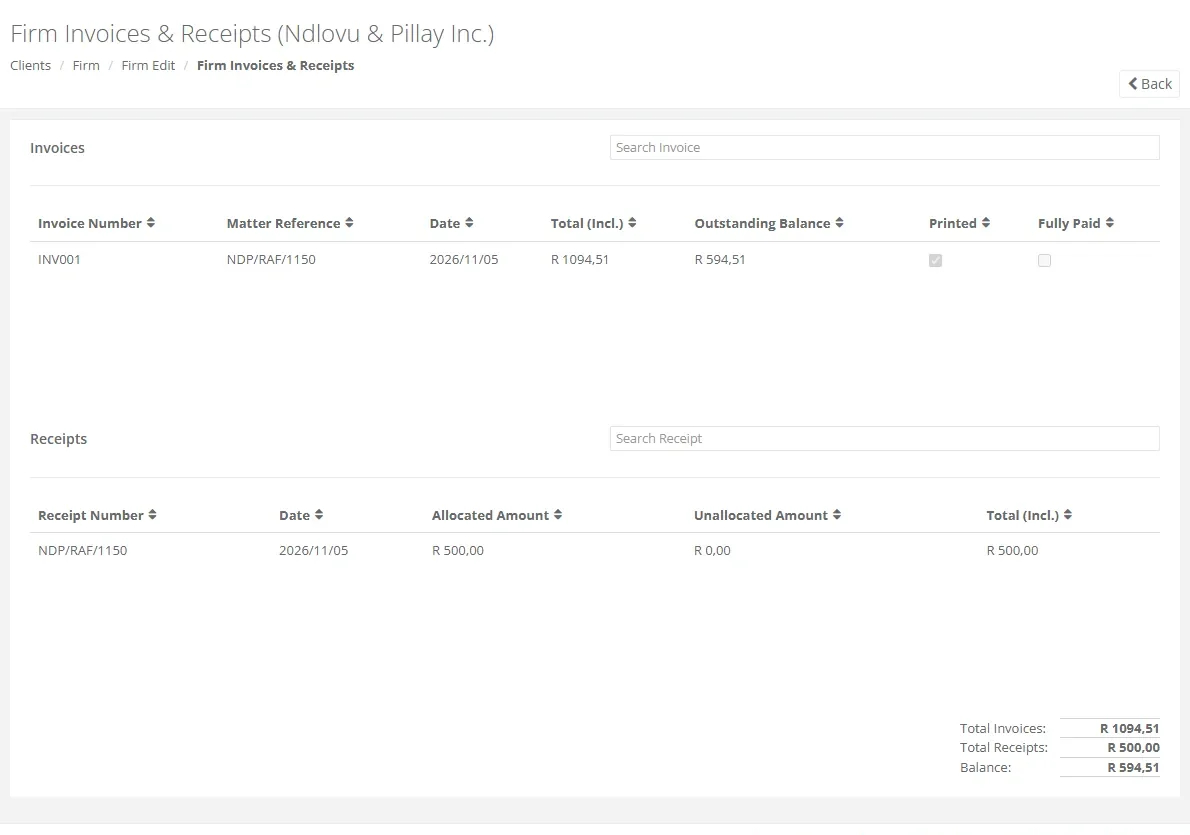
- The invoices table shows the Invoice Number, Matter Reference, Date, Total (Incl.), Outstanding Balance and whether each invoice is Printed and Fully Paid.
- The receipts table shows the Date, Allocated Amount, Unallocated Amount and Total (Incl.) of each receipt.
- Type in Search Invoice or Search Receipt to narrow either table.
- At the bottom, Total Invoices, Total Receipts and Balance give the firm's overall position.
This page has no download. To change an invoice or add a receipt, open the matter; see Invoices and receipts.
View progress reports
The Firm Progress Report lists the firm's active matters that are not yet completed, so you can tell the firm how far each one is. For every matter it shows:
- The matter key, reference, name and consultant.
- The instruction date, the initial and amended due dates, and the original due date.
- The taxation notice date and taxation status, and the dates the matter started awaiting taxation and was allocated a taxation date.
- The latest comment and the file location history.
Use the Client, Consultant and Firm Category lists at the top to narrow the report, then click Download to save it as a PDF.
For progress across all firms at once, use Reports > Client Progress; see Running reports.